Before you begin assembly, watch our assembly video. Once the bike is completely assembled, the pedals are installed, and the bike is powered on, you are ready to pair to the Stages Cycling app.
Download the app
Log in or create an account in the Stages Cycling app. Make sure to allow any required permissions for the app to operate, such as access to Bluetooth or Location services.
Add your bike to the app
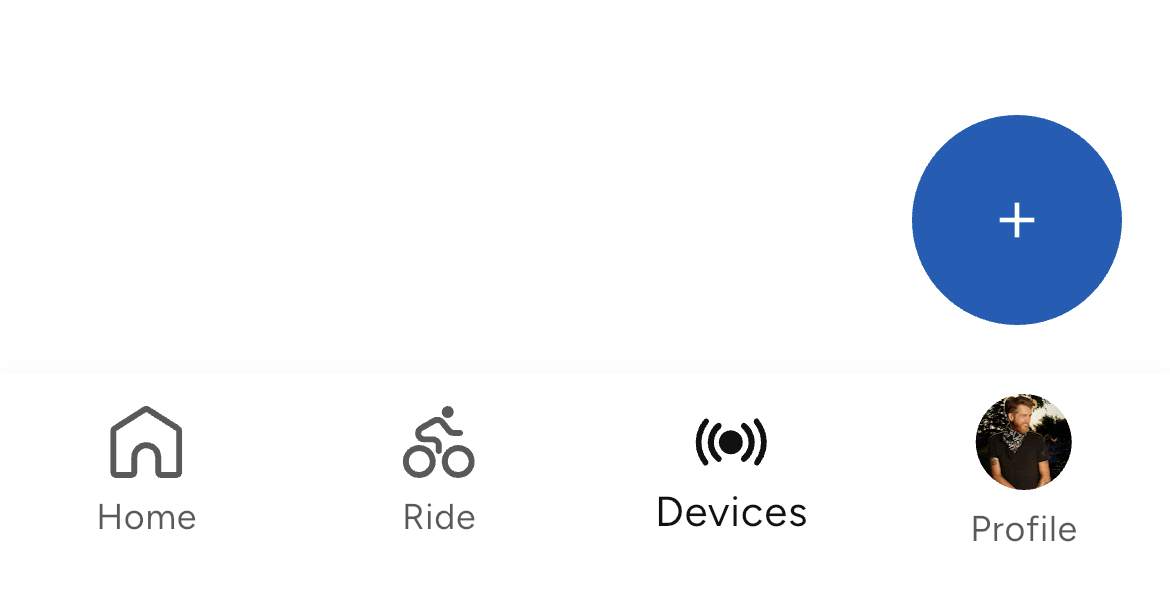
- Tap Devices at the bottom of your screen, then select the plus (+) symbol.
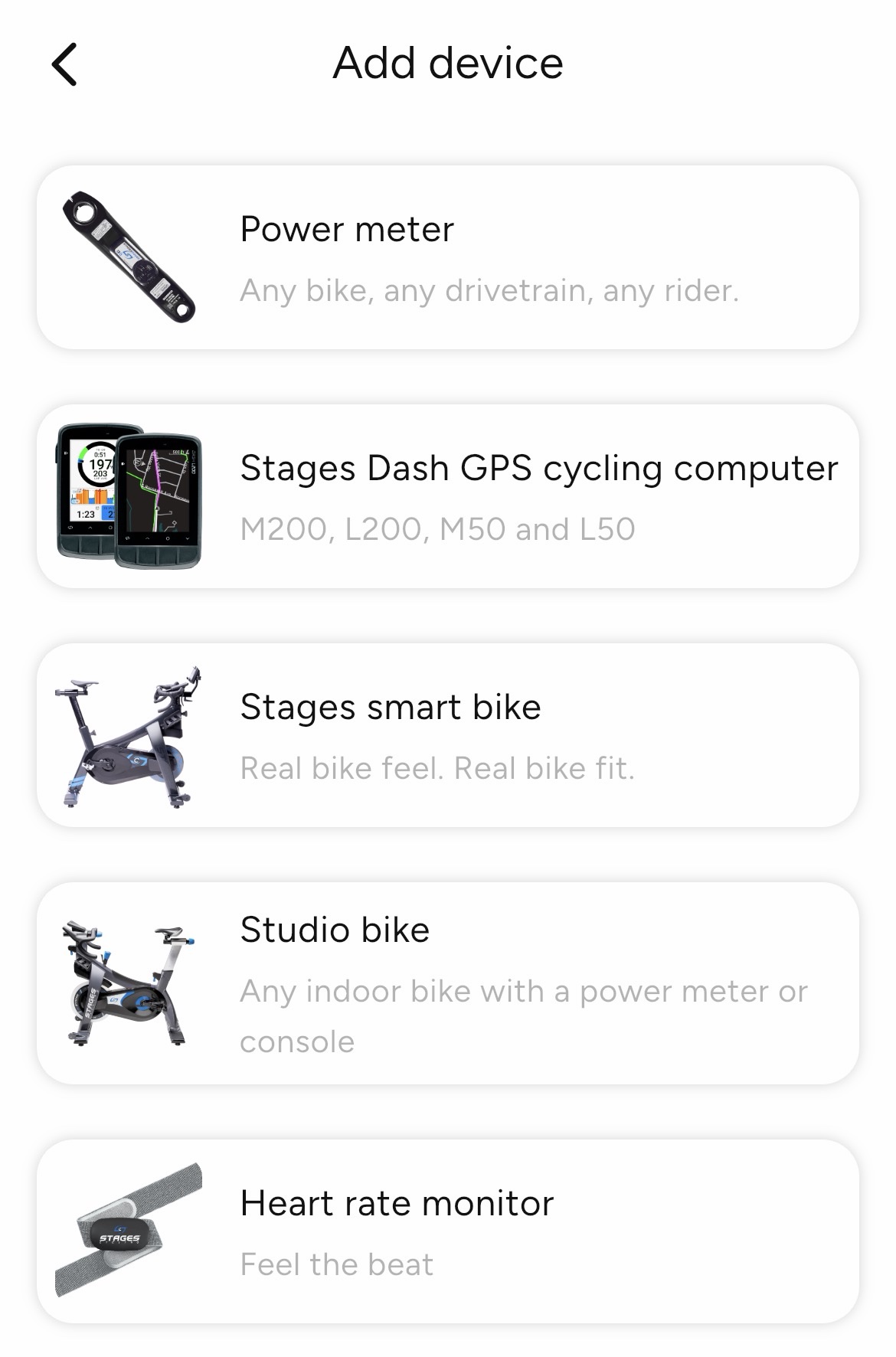
- From the list of devices, select Smart Bike.
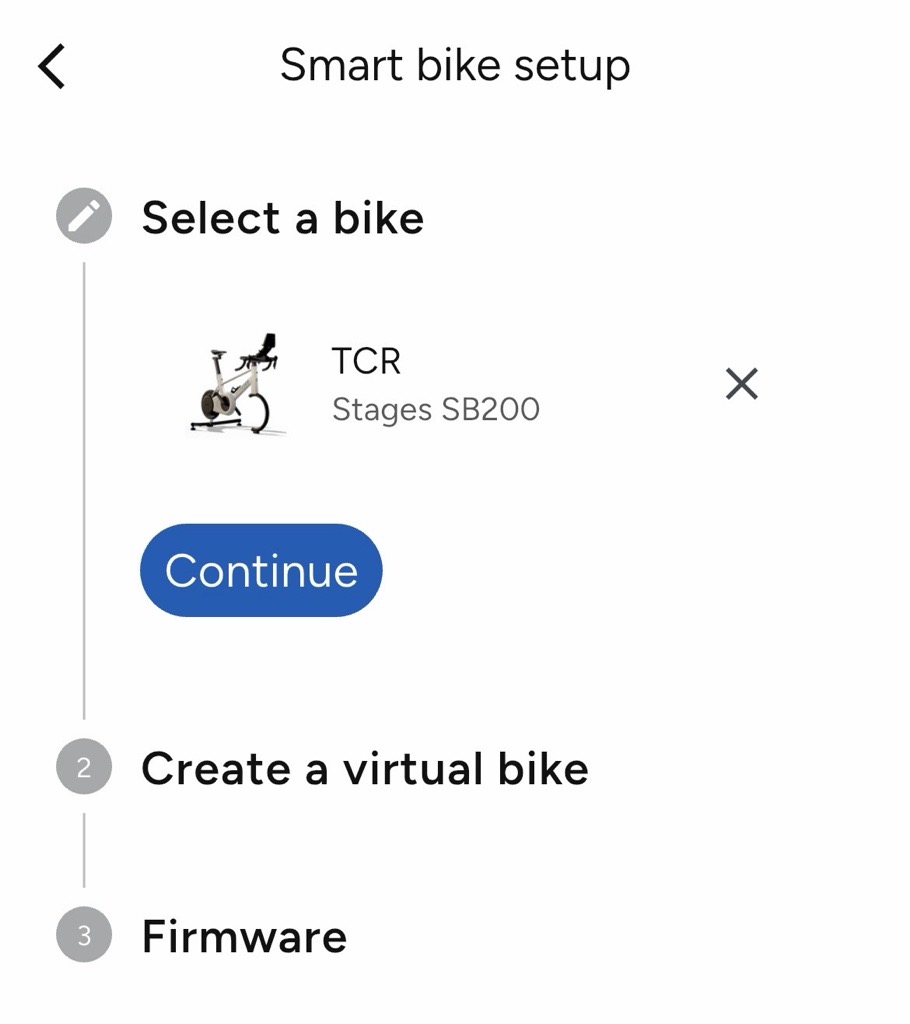
- Select your Stages SB200 from the list of available devices. If multiple SB200s are present, the bike names will include the last 4 digits of the serial number, which is printed on the underside of the downtube.
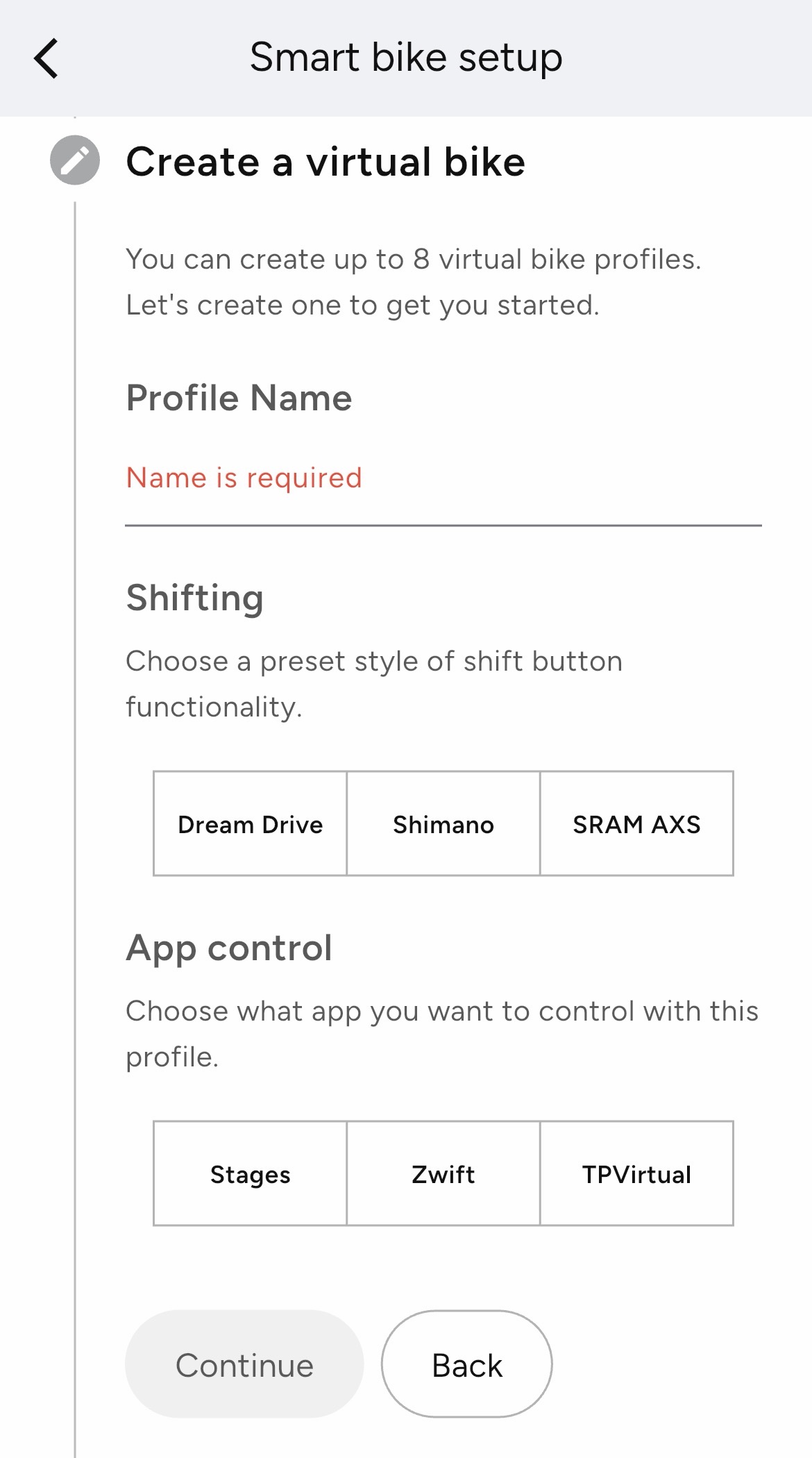
- The app will prompt you to create your virtual bike. These are profiles where you can customize the shifting and app controls on the SB200. If you already have a virtual bike setup created, this step will be skipped.
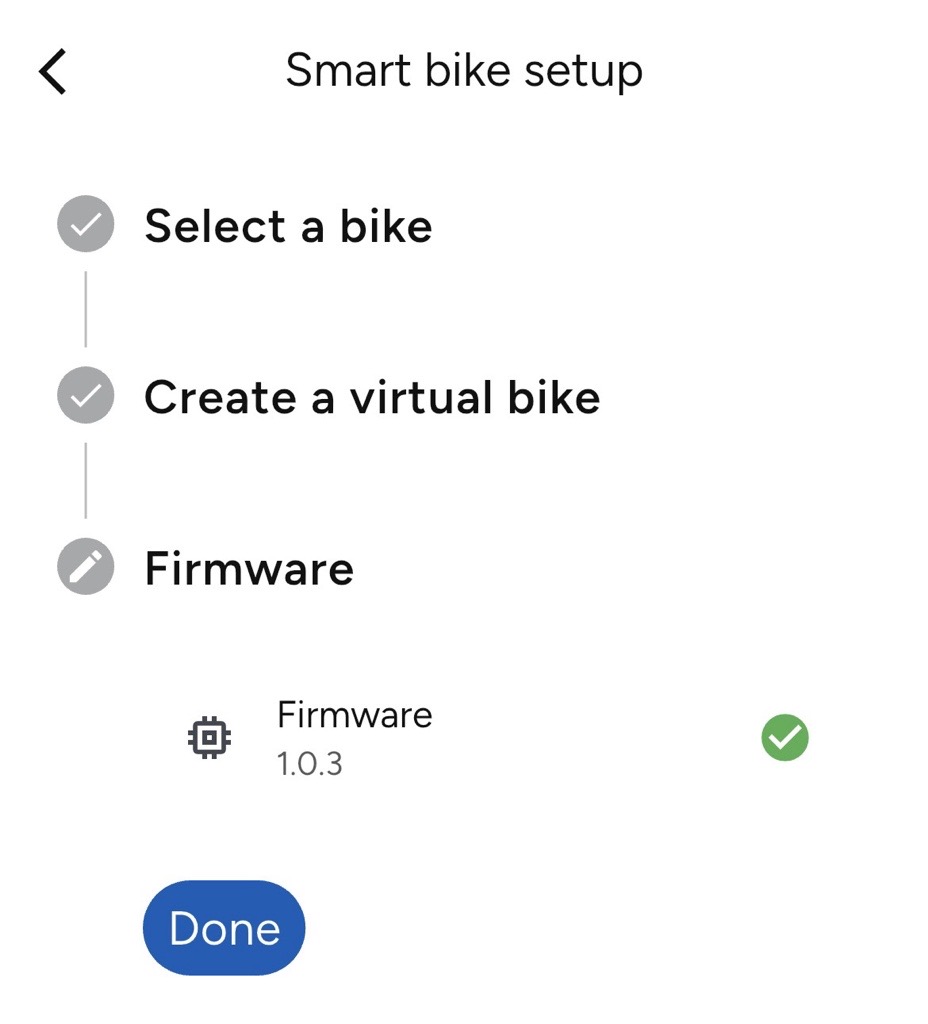
- Confirm the Firmware is up to date, and select Done. If a firmware update is required, you can perform it now.
Multiple users
If your SB200 is being used by multiple people in the same household, each user can add the bike to their own device list. When they connect to the SB200, their default profile will automatically be applied to the bike.
If multiple users are sharing the same device to control the bike, you can either create a separate profile for each user or log out of one account and log in with another account on the same device.
Because each user can set their own body weight and pair their own heart rate monitor, we recommend using separate profiles for each user.
Was this article helpful?
That’s Great!
Thank you for your feedback
Sorry! We couldn't be helpful
Thank you for your feedback
Feedback sent
We appreciate your effort and will try to fix the article